
- Print Business Cards in Sugar Land – Same Day Service
- Copying Services
- Document Printing, Finishing & Lamination in Sugar Land
- Flyers
- Print Banner in Sugar Land | Same-Day Banner Printing Near Me
- Graphic Design
- Photo Printing
- Postcard Printing
- Document Printing
- EDDM Full Service Postcards
- FotoZoomer Large Format Printing


UPS Shipping Label: How to Create, Print, and Ship.
Learn how to create, print, and apply a UPS shipping label the right way, with printing tips, drop-off options, and fixes for common errors.
Businessmailboutique
11645 S. Hwy 6
Sugar land, Texas 77498 United States (US)
Email: info@businessmailboutique.com
Route
You’ve got a box ready, a label half-printed, and a decision to make. Do you tape it down and hope the barcode survives, or do you start over and risk missing the pickup window? A UPS shipping label looks simple from the outside, but at the counter it functions like a routing sheet, a tracking record, and a scan target all at once.
Table of Contents
What a UPS Shipping Label Actually Does
A UPS label isn’t just an address sticker. It’s the document that tells the network where the parcel belongs, how it should move, and what scanners need to read when the box changes hands. That’s why UPS-specific barcodes are built around Code 128, and why the common domestic parcel format is 4 × 6 inches across major U.S. shipping workflows for UPS, USPS, FedEx, and DHL shipping label guidelines.
A counter clerk sees this immediately. If the barcode is bent over a seam, taped over, or stretched on regular paper instead of a thermal label, the label becomes harder to scan and the parcel becomes harder to route. The 4 × 6 format matters because it leaves enough room for the barcode area while still fitting common thermal printers used in e-commerce and high-volume shipping.
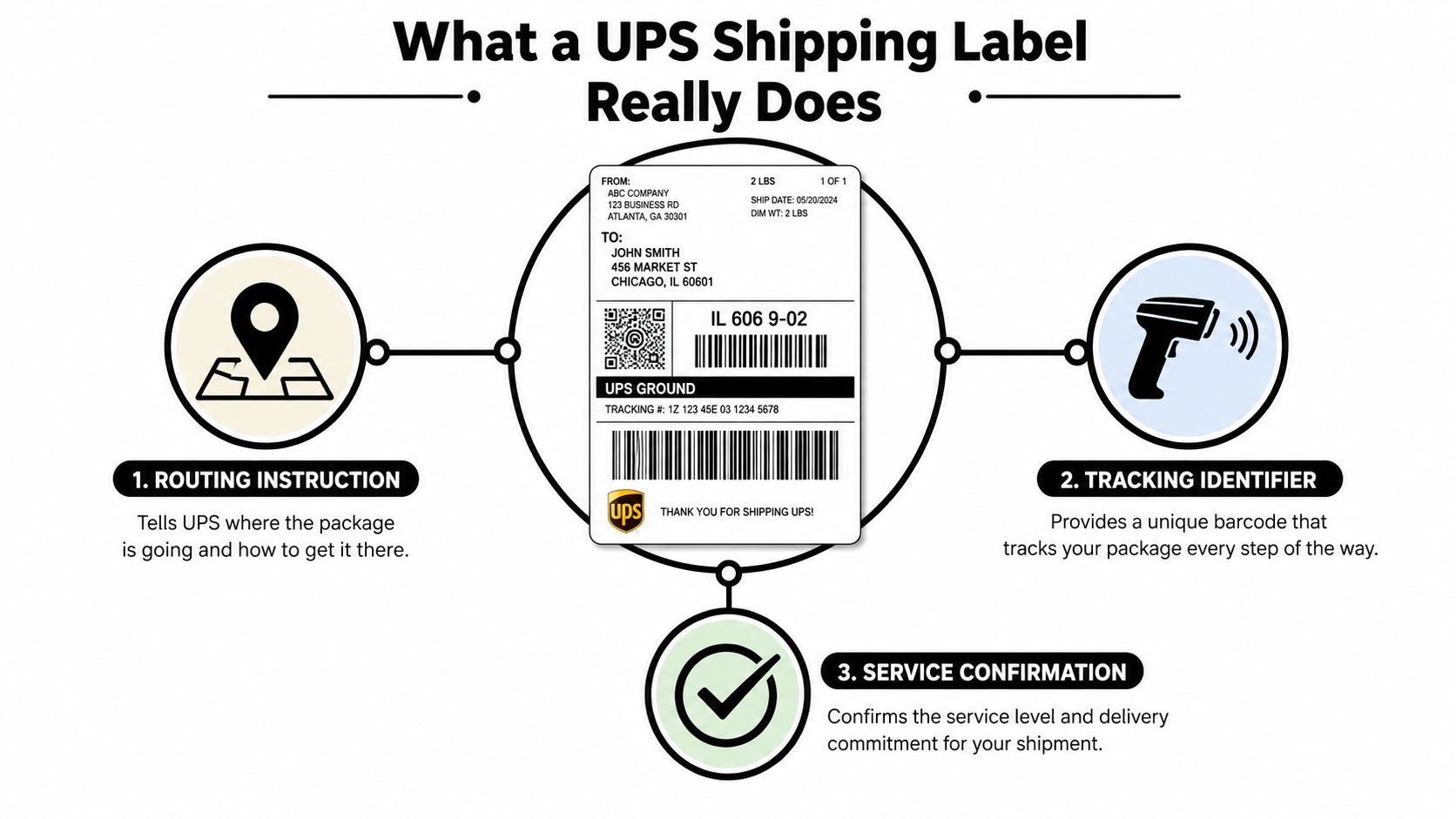
The three things the label has to do
A good label has to do more than look clean.
- Route the parcel. The label tells sortation equipment where the box is going and what service it should receive.
- Identify the shipment. The familiar 1Z tracking number is embedded in the barcode, so the parcel can be scanned as it moves.
- Confirm the service. The smaller service markings help the box stay in the right stream, whether it’s moving by ground or air.
Practical rule: If a label can’t survive a rough handoff, a conveyor pass, and a quick scan, it isn’t ready to ship.
UPS labels also show how much shipping has moved into digital history. UPS support says you can reprint labels from shipping history instead of treating the first printout as the only copy, which is a big shift from the old paper-only mindset UPS label reprint help. That matters in real life, because a label isn’t useful just when it’s created. It has to stay tied to the shipment record after the box leaves the counter.
Creating a UPS Shipping Label Online
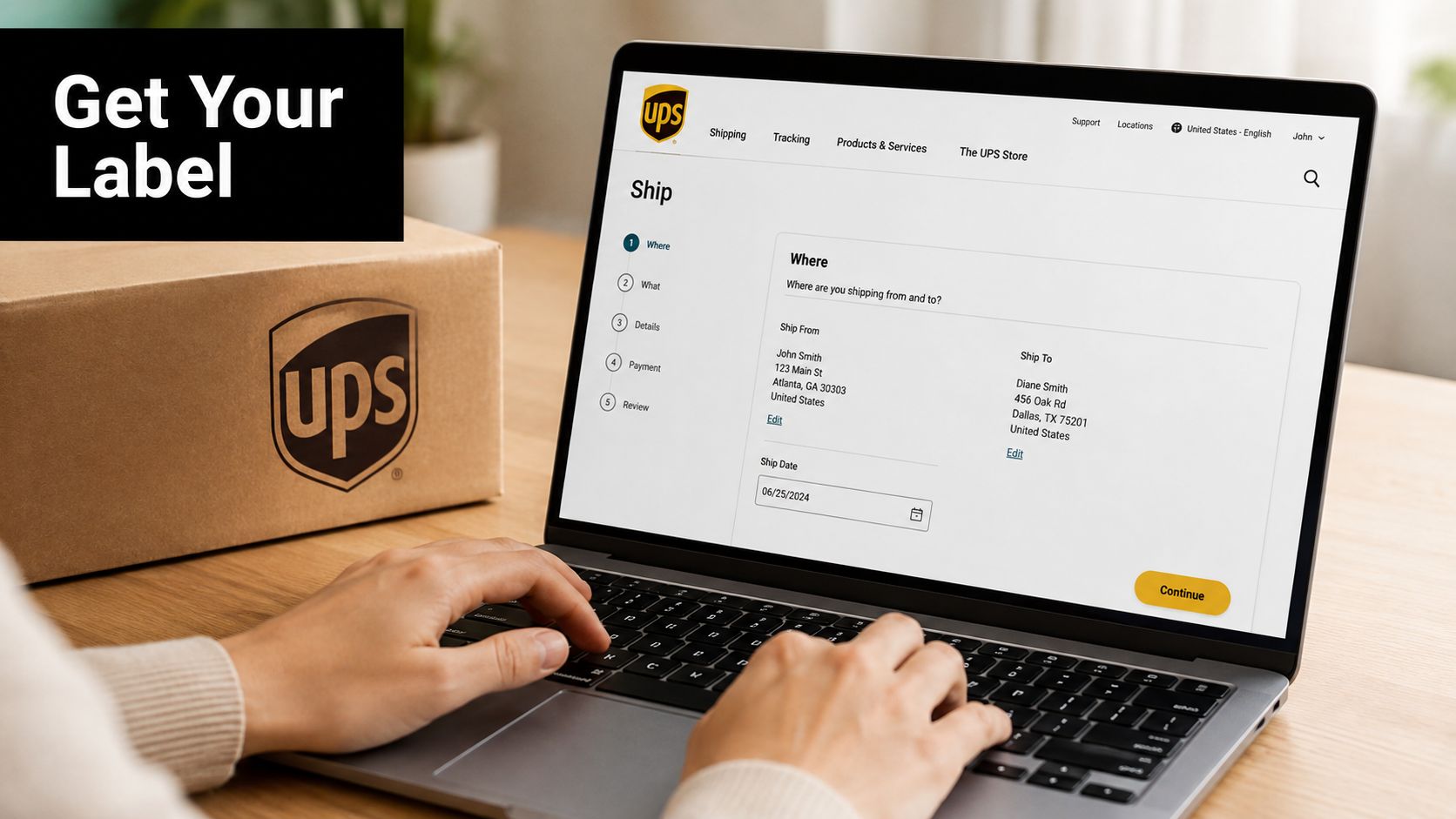
Most labels start online now, whether you’re using UPS directly or a marketplace checkout. Before you click through the screens, have the ship-from address, ship-to address, package weight, and dimensions in front of you. Guessing at any of those fields usually creates trouble later, especially when the shipment has to be corrected or re-labeled.
The shipper section should match your UPS account profile. A small typo in the city, ZIP, or state code can create avoidable problems, and the UPS shipping tools require a valid street address rather than a P.O. Box for most shipments UPS shipping label support. If you’re building returns or outbound orders from a storefront, a real street address keeps the label aligned with carrier rules from the start.
Pick the service before you pay
Choose the service level that fits the package, then confirm whether the address is residential or commercial. That choice affects the shipment details, and if you’re sending something valuable, add declared value before checkout so the label reflects the actual shipment. For a deeper look at how package size affects shipping decisions, the dimensional-weight guide from MSP Packaging tag materials guide is a useful reference point, and our own internal walkthrough on how to calculate dimensional weight connects that math to everyday shipping decisions.
A lot of people also miss the street-form issues that trigger delays. UPS notes that if a shipper uses a P.O. Box in some return or shipping setups, the recipient phone number has to be on the label, which is why a clean street address is safer when you can use one UPS shipping label support. That’s not a cosmetic detail. It decides whether the label is accepted smoothly or kicked back for correction.
If the address field is messy, the label will be messy too.
Printing Your UPS Label the Right Way
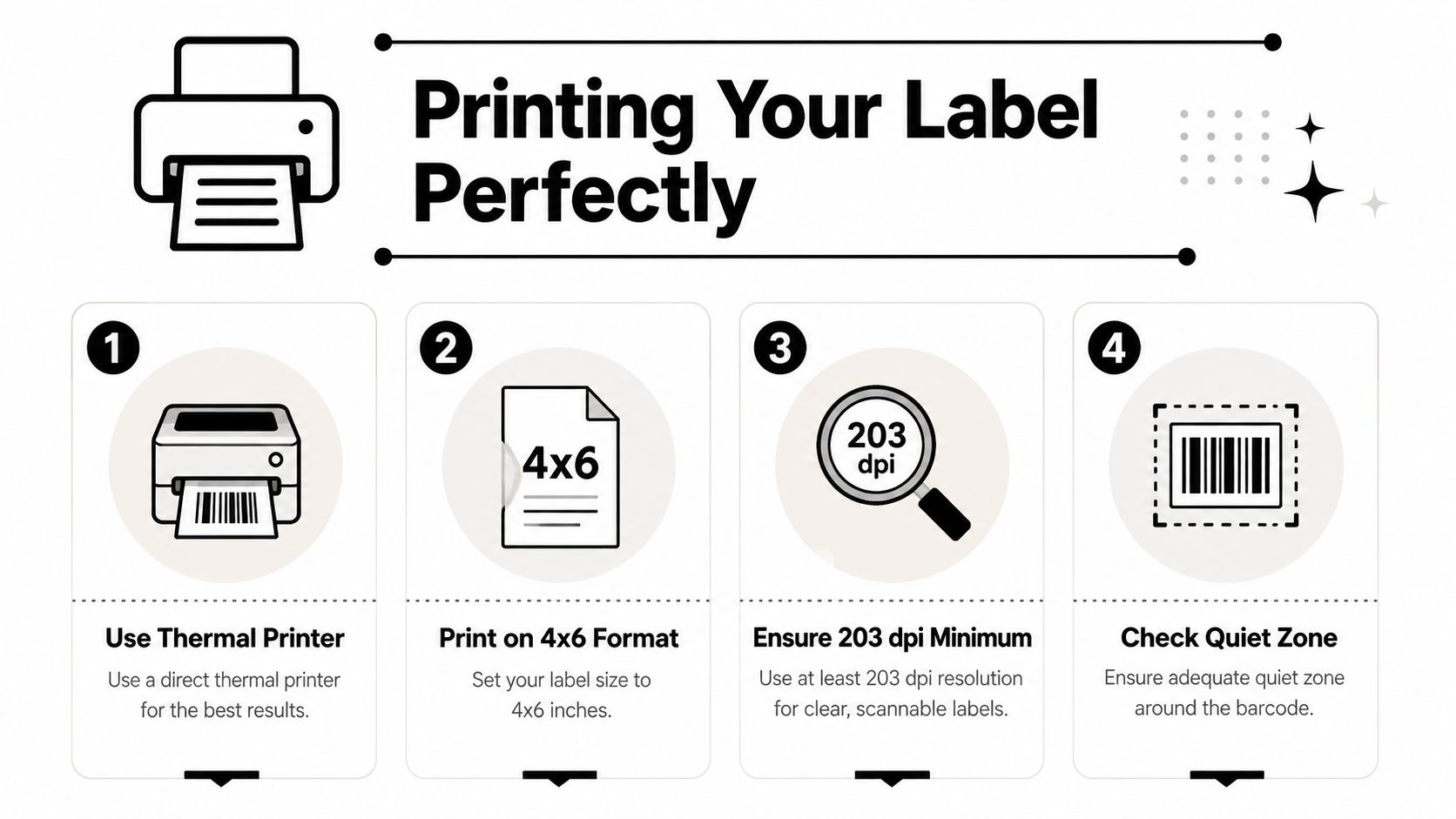
A UPS label can look fine on screen and still fail at the printer. At the counter, I see the same pattern again and again, the file was created correctly, but the print settings or hardware turn it into a bad scan. A thermal label printer at 203 dpi or higher is the cleaner choice for a 4 × 6 label, and it keeps the barcode sharp enough for sorting equipment to read. That matters if you want the parcel to move without a second look 203 dpi label guidance.
If you print on an inkjet or laser printer, keep the scale at 100 percent. Skip Fit to Page. That setting stretches labels, trims quiet space, and can cut into the barcode area. Print one test copy first, then check the bars under good light. If the image looks faint, clipped, or shifted, fix it before the box leaves your desk.
What to check before the label goes on the box
The first scan is the one that matters.
- Check density. The bars should print dark and even, not streaky or faded.
- Check alignment. The tracking barcode should sit fully inside the label, with no clipping at the edges.
- Check cleanliness. Smudges, toner gaps, and dust can interfere with scan quality.
- Check the driver settings. Some printer drivers trim the page, which is how a label loses its lower edge.
UPS’s 2D symbol, MaxiCode, is built for fast parcel handling and uses error correction plus a compact footprint of roughly one square inch. That is why weak print quality shows up so fast at the counter. If the printer drops contrast too far, the scan can fail and the parcel may get held for exception handling instead of moving along 203 dpi label guidance.
For shops that print labels every day, shipping label printing service can save time when the office printer keeps misbehaving. The goal stays the same, a sharp, correctly sized 4 × 6 label that the scanner can trust. One clean print beats three reprints and a rushed drop-off.
A useful video walkthrough is also worth having on hand when a printer starts acting up.
Attaching the Label and Preparing the Package
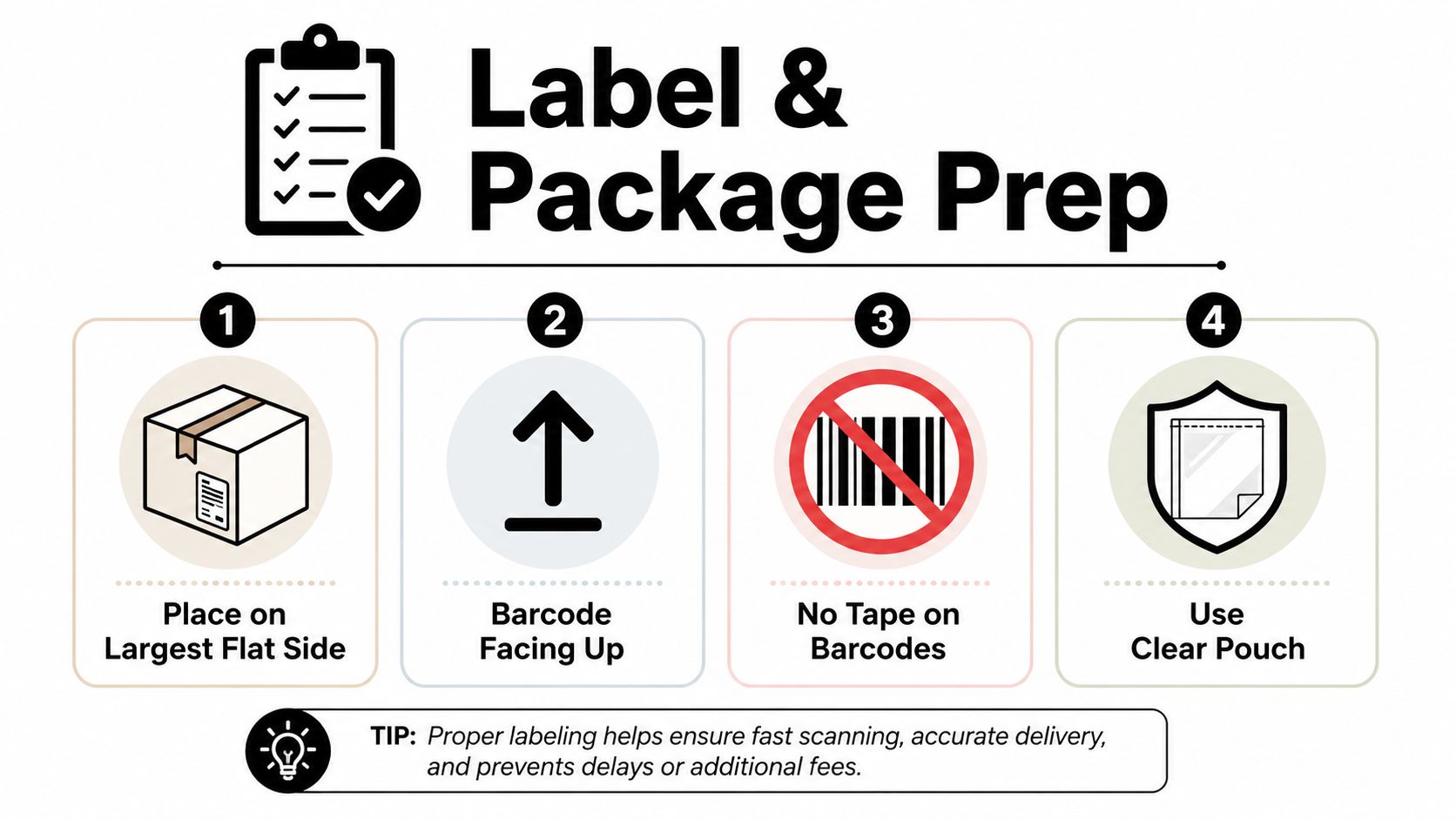
Put the label on the largest flat side of the box, barcoded side up. That sounds basic, but it’s where a lot of counter problems start, because a label wrapped over an edge or seam can wrinkle just enough to make the scanner hesitate. Remove every old label first if you’re reusing a carton, because overlapping tracking numbers confuse sorting equipment and human hands alike.
Keep the barcode visible. A clear pouch is the cleanest option when you’re protecting the label from moisture or abrasion, and if you use tape, use only a strip at the edge so the printed area stays open for scanning. Tape across the 1Z barcode is a self-inflicted error, and it’s one of the fastest ways to turn a good label into a delay.
Packing slips and special handling
A packing slip should stay inside the box or in a separate pouch away from the shipping label. If the slip sits right under the barcode area, workers at the counter or in the sort lane have to peel and reposition it, which wastes time and can damage the label.
For fragile items, add clear handling marks without covering the ship label itself. Multi-piece shipments need matching sequence numbers, so the cartons stay linked when they move through a facility together. The package prep is simple if you think like a sorter, not like a gift wrapper.
Keep the label flat, uncovered, and easy to scan.
That one habit prevents more trouble than most people expect.
Drop-Off, Pickup, and In-Store Help
The right handoff point depends on how messy the shipment is. If the label is clean and the parcel is ready, driver pickup is convenient for repeat shippers who already have a scheduled window. If you’re dropping off a prepaid package after work, a UPS Access Point can make more sense because it’s built for residential-style convenience and off-hours handoff.
For label problems, a staffed counter wins. The UPS Store and authorized third-party locations can reprint, reweigh, and handle shipping help when the label is half-printed or the address needs correction. That’s where an in-person counter solves the issue, not just the printing issue. One place that operates in that lane is Business Mail Boutique’s UPS authorized shipping outlet, which fits the same basic model, label help, drop-off support, and shipping assistance at a staffed counter.
Which option makes sense
| Option | Best For |
|---|---|
| Driver pickup | Daily shippers with a regular schedule |
| UPS Access Point | Pre-labeled residential drop-offs after hours |
| The UPS Store | Packing help, international forms, and more complex shipments |
| Authorized third-party shipper | Label correction, drop-off support, and account-based shipping |
The point isn’t to pick the closest location. It’s to pick the handoff that matches the shipment’s complexity. A simple parcel can go almost anywhere, but a shipment with a damaged label, a customs form, or a packing concern is better handled by a counter that can fix the problem before the parcel disappears into the network.
Common UPS Label Mistakes and How to Avoid Them
A label can look fine on your screen and still fail at the counter or in the sort hub. The usual problems are simple: a P.O. Box in the street field, a ZIP code that does not match the city, a missing apartment number, or a barcode that prints too faintly to scan. UPS’s label support explains the address rules, and the barcode guidance shows how strict machine readability is for a package that has to move through the network UPS shipping label support, shipping label guidelines.
The mistakes that usually bounce a parcel
- Street field errors. A P.O. Box or an incomplete street line can make the label unusable for the chosen service.
- Bad unit information. Missing apartment, suite, or floor details can send the box to the wrong door.
- Wrong print quality. Low-density output can blur or streak the barcode.
- Reused cartons. An old label left on the box can trigger a conflicting scan.
- Tape over the code. Even clear tape can glare under a scanner and create trouble.
A short pre-handover check catches most of this before the box leaves the bench. Confirm the full address, unit number, service level, weight, dimensions, visible tracking number, and removal of old labels before printing. That takes less time than fixing a rejected parcel after it has already been handed off.
At the counter, the pattern is hard to miss. The labels that fail are usually the ones that were rushed, reprinted on poor stock, or sealed before anyone checked the details. The correction costs more than the original label, and the second trip back to the counter costs time too.
Putting It All Together and Getting More Help
The clean workflow is straightforward. Confirm the ship-to and ship-from addresses, choose the service, pay, print at 203 dpi or better, attach the label flat on the largest side, and hand it off through pickup, a drop-off point, or a staffed counter. The details matter because the label has to survive scanning, not just look acceptable in your inbox.
Each handoff path solves a different problem. Pickup saves the trip. Access Points extend the day. The UPS Store is useful when packing or customs paperwork enters the picture. Independent shipping counters can also handle label support, shipping help, and account-based parcel processing when you want a real person to look at the shipment before it goes out.
For shippers who do this regularly, the label is only one part of the workflow. Packing supplies, private mailbox options, print services, and freight support all become relevant once shipping stops being occasional. That’s where a local ship center can turn a one-off label into a repeatable process.
Business Mail Boutique LLC handles UPS drop-offs, shipping labels, packing, printing, mailbox services, and related counter help from its Sugar Land storefront. If you want a place that can print, recheck, and process shipments without guessing at the details, visit Business Mail Boutique LLC and use the same counter support for your next UPS shipment.

Related posts

Custom Memorial Glasses Engraved in Three Hours in Sugar Land
When a customer needed eight personalized glasses for a memorial, Business Mail Boutique completed the engraving or...

Custom Martini Glass Engraving in Sugar Land, TX
Custom Logo Engraving on Martini Glasses in Sugar Land, Texas.
Business Mail Boutique recently completed a beautiful custom engravin...

Custom Engraved Wine Glasses for a Golf Club Event in Sugar Land, TX
Custom Engraved Wine Glasses for a Golf Club Event in Sugar Land.
Custom wine glass engraving in Sugar Land, TX at Business Mail Bouti...